
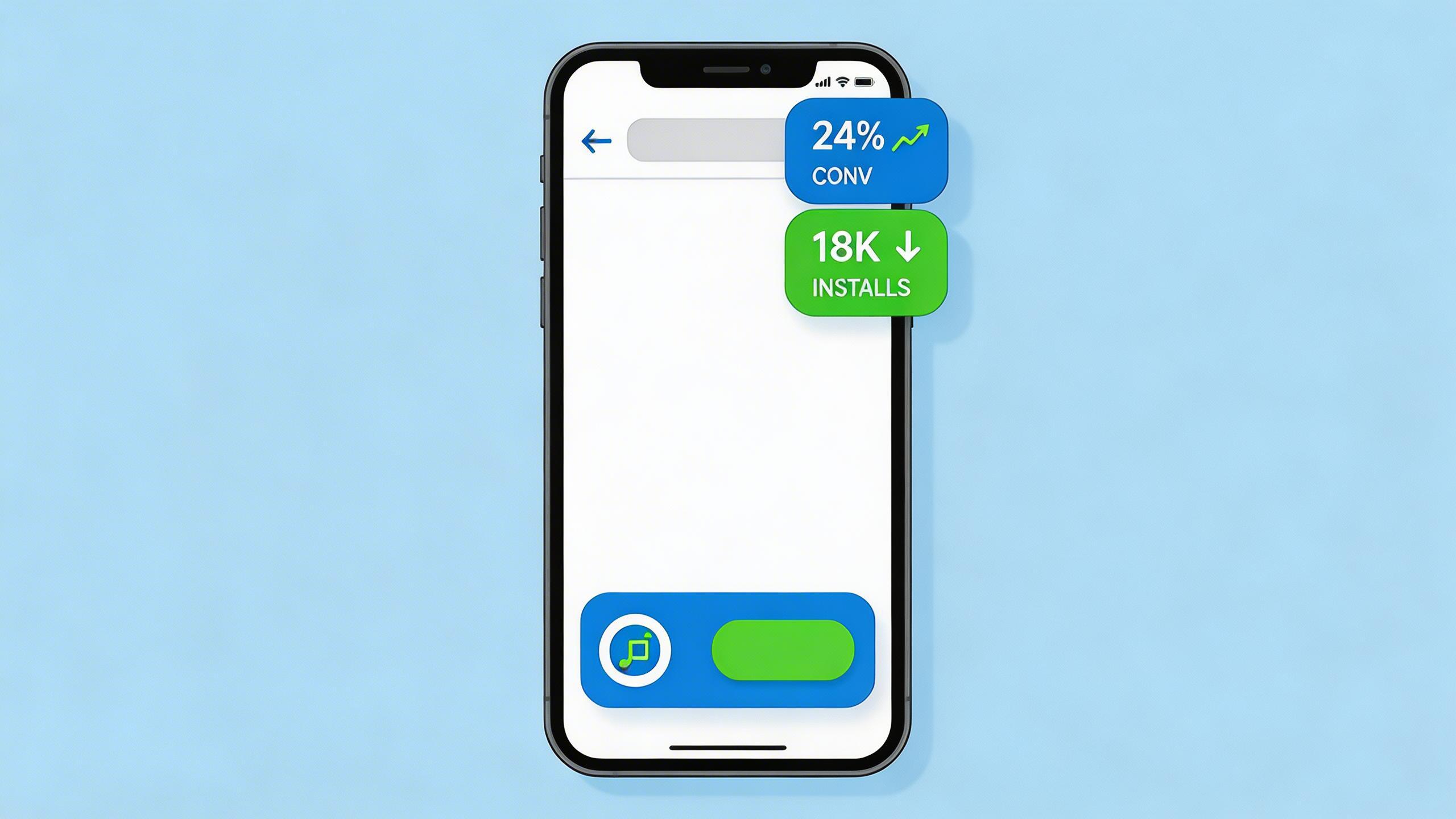
If you have built a Progressive Web App, you already know it can deliver near-native performance in the browser. But building a great PWA is only half the battle. The real challenge in 2026 is getting users to install it. PWA install rate optimization is the discipline of turning casual visitors into committed app users—and the payoff is enormous. Installed PWAs see higher engagement, better retention, and significantly more conversions than their browser-tab counterparts.
In this guide, you will learn the exact techniques top teams are using in 2026 to maximize PWA install rates—from prompt timing and pre-prompt UI patterns to conversion tracking and advanced contextual triggers. Whether you are running a content site, an e-commerce store, or a SaaS product, these strategies will help you capture more installs and drive measurable business results.
→ Want to improve your post-click conversion rate? Talk to DeepClick.
What Is PWA Install Rate and Why It Matters
PWA install rate is the percentage of eligible visitors who complete the Add-to-Home-Screen (A2HS) flow and install your Progressive Web App on their device. It is calculated as:
Install Rate = (Completed Installs / Eligible Impressions) × 100
Why does this metric matter so much? Because installed PWAs fundamentally change user behavior. When a user installs your PWA, they are giving you a permanent slot on their home screen—right alongside native apps. This translates directly into business outcomes:
- Higher engagement: Pinterest reported a 60% increase in engagement after launching their PWA, along with a 44% increase in ad revenue.
- Better retention: Installed PWAs benefit from push notifications, background sync, and offline capabilities that keep users coming back.
- Lower acquisition costs: Unlike native app installs from app stores, PWA installs have zero platform fees and no review process delays.
- Faster load times: Installed PWAs leverage cached resources aggressively—you should target a cache hit rate above 85% for repeat visits to keep the experience snappy.
The gap between a PWA that sits in a browser tab and one that lives on the home screen is the gap between a casual visitor and a loyal user. Optimizing your install rate is one of the highest-leverage activities you can pursue in 2026.
The Technical Foundation: Manifest, Service Worker, and HTTPS
Before you can optimize your install prompt, you need to meet the baseline technical requirements that browsers—especially Chrome—enforce before they will even show the install prompt. As of 2026, Chrome’s install criteria require three things:
- HTTPS: Your site must be served over a secure connection. No exceptions.
- A registered service worker: You need an active service worker with a
fetchevent handler. This is what enables offline functionality and resource caching. - A valid Web App Manifest: Your
manifest.jsonmust includenameorshort_name,icons(at least 192px and 512px),start_url, anddisplayset tostandalone,fullscreen, orminimal-ui.
The standalone display mode is particularly important because it removes the browser chrome (address bar, navigation buttons) and gives users a native app feel. This is not just a cosmetic choice—it signals to users that your PWA is a “real” app, which increases trust and ongoing usage.
Here is a minimal but effective manifest configuration:
{
  "name": "My App",
  "short_name": "MyApp",
  "start_url": "/",
  "display": "standalone",
  "background_color": "#ffffff",
  "theme_color": "#1a73e8",
  "icons": [
    { "src": "/icons/icon-192.png", "sizes": "192x192", "type": "image/png" },
    { "src": "/icons/icon-512.png", "sizes": "512x512", "type": "image/png" }
  ]
}
Speed is also a foundational factor. Research consistently shows that as page load time increases from 1 second to 10 seconds, the probability of bounce increases by 123%. If your PWA is slow to load, users will leave before they ever see an install prompt. Invest in performance optimization first—especially on mobile networks. For more on this, see our guide on mobile landing page speed and its impact on conversions.
Timing Your Install Prompt for Maximum Conversion
The single biggest mistake teams make with PWA install prompts is showing them too early. When a user lands on your page for the first time, they have no relationship with your product yet. Asking them to install at that moment is like asking someone to move in on the first date.
The beforeinstallprompt event is your key tool here. Chrome fires this event when the installability criteria are met, but you should intercept it and defer the prompt until the right moment. Here is the basic pattern:
let deferredPrompt;

window.addEventListener('beforeinstallprompt', (e) => {
  e.preventDefault();
  deferredPrompt = e;
  // Show your custom install UI at the right time
});

function showInstallPrompt() {
  if (deferredPrompt) {
    deferredPrompt.prompt();
    deferredPrompt.userChoice.then((result) => {
      if (result.outcome === 'accepted') {
        console.log('User accepted install');
      }
      deferredPrompt = null;
    });
  }
}
The question is: when is “the right time”? Based on data from high-performing PWAs in 2026, the best trigger points are:
- After a meaningful interaction: Show the prompt after the user completes a core action—saving an item, completing a search, reading a full article, or adding something to a cart.
- On the second or third visit: Returning visitors have already demonstrated interest. Use
localStorageor a cookie to track visit count and trigger on return. - After a time threshold: Wait at least 30-60 seconds of active engagement before showing any install UI. This filters out users who are going to bounce.
- At a natural pause point: Show the prompt after a page scroll break, between content sections, or after a video finishes playing.
The concept of progressive disclosure applies here—you want to reveal the install option at the moment when the user is most receptive. This is the same principle behind progressive disclosure in landing page design, where information is revealed in layers to reduce cognitive overload.
Designing the Pre-Prompt UI (Mini Info Bar Pattern)
Chrome’s default install prompt (the mini-infobar) is generic and easy to dismiss. The most effective approach in 2026 is to suppress the default prompt and replace it with a custom pre-prompt UI that:
- Explains the value: Tell users what they gain by installing—”Get instant access offline,” “Receive real-time price alerts,” or “Load 3x faster on your next visit.”
- Matches your brand: Use your app’s colors, typography, and visual language so the prompt feels like a natural part of the experience.
- Provides a clear dismiss option: Never trap users. A prominent close button builds trust and reduces annoyance.
- Uses social proof: “Join 50,000+ users who installed our app” or “Rated 4.8 by installed users” can meaningfully lift conversion.
Common UI patterns for the pre-prompt include:

- Bottom sheet / banner: A slim bar at the bottom of the viewport with a brief value proposition and an “Install” button.
- In-content card: A card embedded within the content flow—for example, between blog sections or after a product listing.
- Full-screen interstitial: Use sparingly and only for returning visitors who have shown high intent. This is the highest-converting pattern but can be annoying if misused.
- Contextual inline prompt: Show the install option right next to the feature that requires it—for example, next to offline reading or push notification settings.
The key principle: your pre-prompt UI should make users want to install before the browser’s native prompt appears. When users click your custom “Install” button and then see the browser confirmation, the accept rate is dramatically higher because they have already made the decision.
DeepClick helps Meta advertisers improve CVR by 30%+ through automated re-engagement and post-click link optimization. Learn more →
Optimizing the Add-to-Home-Screen Experience
The A2HS experience does not end when the user taps “Install.” What happens after installation is equally important for long-term retention. Here are the key optimizations:
Splash screen quality: The splash screen is generated from your manifest’s background_color, theme_color, name, and icon. Make sure your 512px icon looks sharp and your colors are on-brand. A professional splash screen reinforces the “this is a real app” perception.
First-launch experience: When a user opens your installed PWA for the first time, consider showing a brief onboarding flow that highlights the key benefits they unlocked by installing: offline access, push notifications, faster loading. This reduces early churn.
Push notification opt-in: Do not request push notification permission immediately on first launch. Wait until the user has completed another meaningful action. The permission prompt is a binary, one-time decision—make sure the user is ready to say yes.
Deep linking: Ensure that links shared from your PWA open correctly within the installed app, not in the browser. Configure your manifest’s scope and use the share_target API to handle incoming shares.
For teams running Meta ad campaigns that drive traffic to PWA landing pages, the post-install experience is a critical conversion touchpoint. If you are using AI-powered smart traffic routing, you can direct high-intent visitors to an optimized install flow while routing lower-intent visitors to a standard web experience.
Measuring and Tracking PWA Install Events
You cannot optimize what you do not measure. PWA install tracking requires capturing several distinct events:
1. Install prompt shown: Track when your custom pre-prompt UI is displayed. This is your denominator for calculating pre-prompt click-through rate.
// Track when pre-prompt is shown
analytics.track('pwa_install_prompt_shown', {
  trigger: 'scroll_depth_50',
  visit_number: getVisitCount(),
  page: window.location.pathname
});
2. Install prompt interaction: Track clicks on your custom “Install” button, as well as dismissals.
3. Browser prompt outcome: Use the userChoice promise from the beforeinstallprompt event to track whether the user accepted or dismissed the native browser prompt.
deferredPrompt.userChoice.then((result) => {
  analytics.track('pwa_install_outcome', {
    outcome: result.outcome, // 'accepted' or 'dismissed'
    platform: result.platform
  });
});
4. App installed event: Listen for the appinstalled event as the definitive confirmation that installation completed.
window.addEventListener('appinstalled', () => {
  analytics.track('pwa_installed', {
    timestamp: Date.now(),
    source: document.referrer
  });
});
5. Post-install engagement: Track whether installed users return, how often, and what actions they take. Compare these metrics against non-installed users to quantify the install lift.
Build a dashboard that visualizes the full install funnel: Eligible Visits → Prompt Shown → Prompt Clicked → Browser Prompt Accepted → Install Completed → Post-Install Return. Identify the biggest drop-off points and prioritize optimization there.
For teams that are also optimizing their Meta Ads creative pipeline, tracking install events alongside ad performance data gives you a complete picture of your acquisition funnel. Understanding how creative scaling affects downstream conversion rates can help you allocate budget toward the ad variants that drive the most installs.
Advanced Tactics: Deferred Prompts and Contextual Triggers
Once you have the basics in place, these advanced techniques can push your install rate even higher:
Feature-gated install prompts: Identify features that work significantly better in the installed version (offline mode, push notifications, background sync) and show the install prompt when users try to access those features. Example: “Install our app to save articles for offline reading.” This creates a natural motivation to install.
Gamification: Some apps show a progress bar or achievement system where installing the PWA unlocks a bonus or discount. E-commerce PWAs might offer “Install for 10% off your first order” or “Unlock free shipping by adding our app.” Just ensure the offer is genuine and valuable.
Re-engagement for dismissed prompts: If a user dismisses your install prompt, do not show it again immediately. Wait for a cooling-off period (7-14 days or 3-5 return visits) before resurfacing it, ideally with a different value proposition. Track dismissal counts and permanently suppress after 3 dismissals—you do not want to annoy loyal web users.
A/B testing prompt variants: Test different pre-prompt designs, copy, and timing strategies. Small changes in wording—”Add to Home Screen” vs. “Install App” vs. “Get the App”—can produce surprising differences in conversion rate. Similarly, testing prompt placement (bottom bar vs. inline card vs. header banner) often reveals that the optimal position varies by audience.
Segment-based prompting: Not all users are equal candidates for installation. Users arriving from organic search might have different intent than those arriving from paid ads. Users on Android have a more mature PWA install experience than those on iOS (which still has limitations in Safari). Tailor your prompt strategy by segment. Teams that are trying to scale past the Meta Ads learning phase often find that segmenting install prompts by traffic source produces better overall CVR.
Periodic update prompts: When you ship a major update, let installed users know through a brief in-app notification. For non-installed users, the update itself can be the install hook: “We just launched offline mode—install now to try it.”
Key Takeaways and Optimization Checklist
Here is a concise checklist to guide your PWA install rate optimization in 2026:
- Technical foundation: Confirm HTTPS, active service worker with fetch handler, and a complete manifest with 192px + 512px icons and
display: standalone. - Performance baseline: Aim for sub-3-second load times on mobile. Target a cache hit rate above 85% for returning visitors.
- Prompt timing: Intercept
beforeinstallpromptand defer it. Show your custom pre-prompt after a meaningful interaction, not on first page load. - Pre-prompt design: Build a branded, value-driven pre-prompt UI that explains installation benefits. Always include a clear dismiss option.
- A2HS experience: Polish your splash screen, create a first-launch onboarding flow, and delay push notification requests.
- Full-funnel tracking: Measure prompt impressions, click-throughs, browser prompt outcomes, install completions, and post-install retention.
- Advanced tactics: Feature-gate installs, test prompt variants, segment by traffic source, and implement smart re-engagement for dismissed prompts.
- Respect user choice: Permanently suppress prompts after 3 dismissals. Never use dark patterns. Trust earns installs.
PWA install rate optimization is not a one-time project—it is an ongoing process of measurement, testing, and refinement. The teams that treat it as a core product metric, rather than an afterthought, will capture a significant competitive advantage in 2026 and beyond.
Stop losing conversions after the click.
DeepClick helps Meta advertisers fix post-click drop-offs and improve CVR by 30%+ through automated re-engagement and post-click link optimization.
发表回复